So richten Sie Ihren Uni-Mail-Account auf Ihrem macOS Gerät unter Outlook ein:
1
Falls Sie es noch nicht installiert haben, finden Sie hier eine Anleitung dazu.
Sollten Sie Outlook bzw. Ihr Office-Paket nicht von der Uni Bayreuth haben, befolgen Sie bitte trotzdem Schritte 1-5 der verlinkten Anleitung, um sich ein Microsoft-Konto für Ihre Uni Kennung zur Verfügung stellen zu lassen.
Ansonsten schlägt die Mail-Einrichtung höchstwahrscheinlich fehl.
2
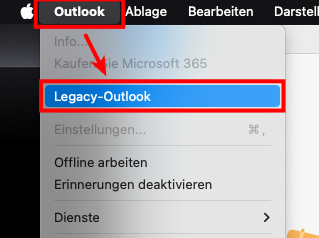
Klicken Sie hierzu oben auf Outlook -> Legacy-Outlook und bestätigen Sie die Umstellung. Sollte es diesen Punkt bei Ihnen nicht geben, nutzen Sie vermutlich bereits die Legacy Version.
Sollten Sie nach Feedback gefragt werden, senden Sie es einfach ohne etwas auszufüllen ab.
3
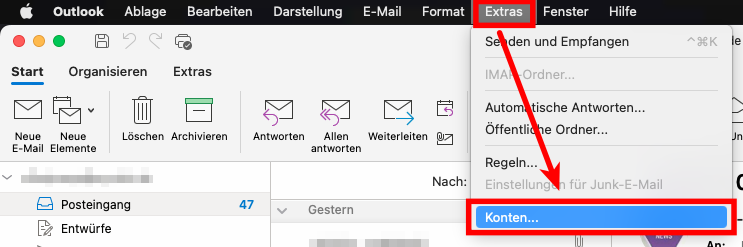
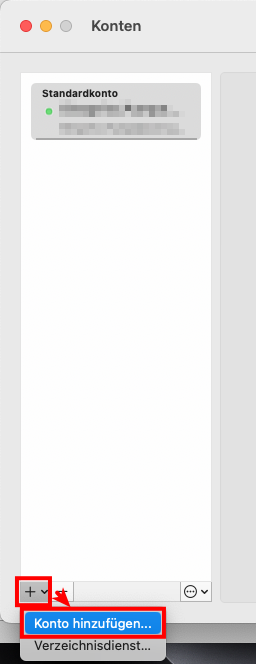
Sollte kein Dialog erscheinen, klicken Sie oben auf Extras -> Konten, dann in dem neuen Fenster auf das Plus-Zeichen unten links und anschließend auf Konto hinzufügen...
4
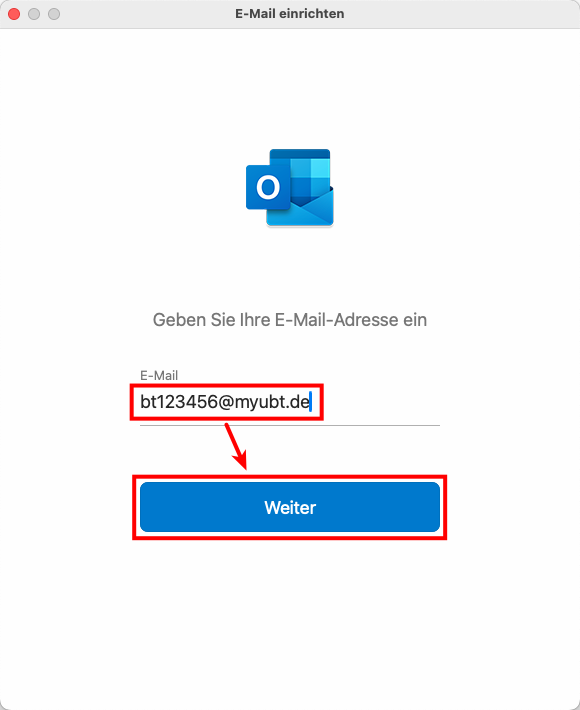
5
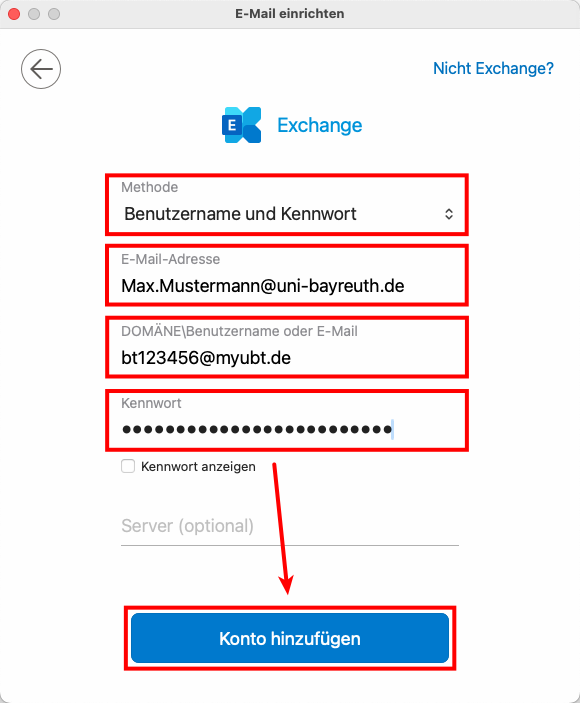
- Methode: Benutzername und Kennwort
- E-Mail-Adresse: Ihre Uni Bayreuth Mail-Adresse (üblicherweise Vorname.Nachname@uni-bayreuth.de)
- Domäne\Benutzername oder E-Mail: Ihre Uni Bayreuth Benutzerkennung + @myubt.de (also z.B. bt123456@myubt.de)
- Kennwort: Das Passwort zu Ihrer Uni Bayreuth Kennung
Bestätigen Sie die Eingaben mit einem Klick auf Konto hinzufügen.
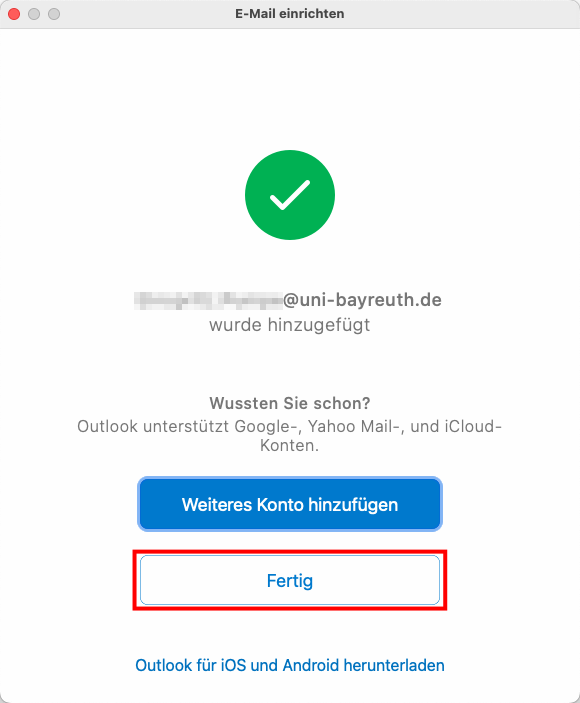
6
Sagen Sie uns die Meinung - hat alles geklappt?
Laptopsprechstunde
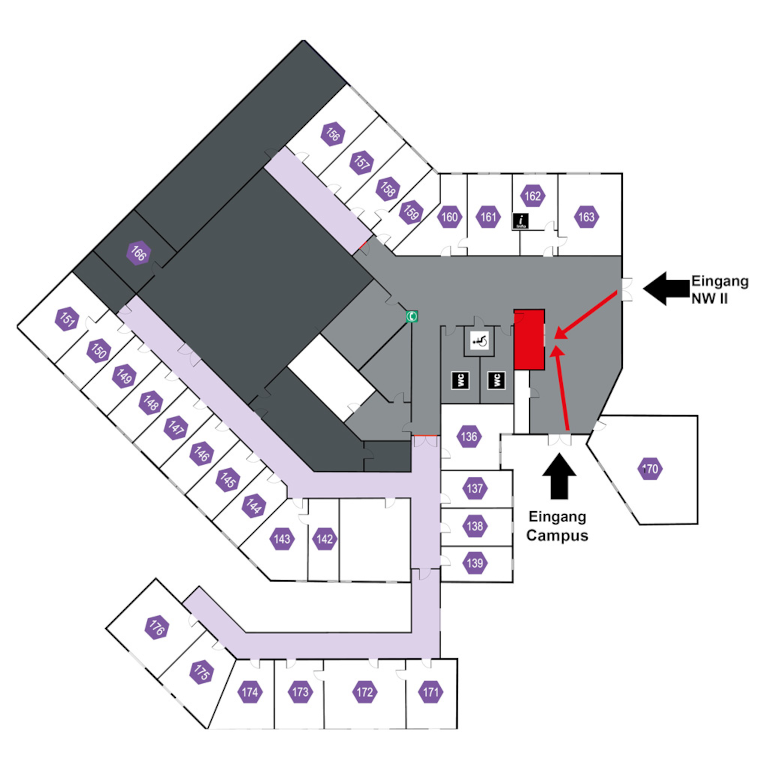
IT-Servicezentrum Raum 3.2.U1.131 (Schalter im ITS Flur)
Öffnungszeiten: (ganzjährig, außer während der Weihnachtsschließung)
Mo-Fr 08:30 - 11:00 Uhr
Mo-Do 13:30 - 15:30 Uhr
Keine Terminvereinbarung erforderlich!
Mail: laps@uni-bayreuth.de