So richten Sie eduroam via geteduroam App auf Ihrem Android-Gerät ein:
1
Falls eduroam bereits auf Ihrem Gerät eingerichtet ist, entfernen Sie es bitte zunächst.
Hier finden Sie die Anleitung dazu.
Hier finden Sie die Anleitung dazu.
2
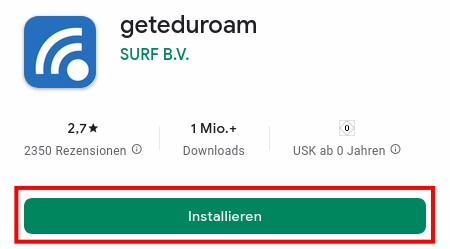
Installieren Sie die App geteduroam über den Google Play Store Ihres Android Gerätes.
https://laps.uni-bayreuth.de/geteduroam-android oder via dem QR-Code rechts.
Hinweis
Sollte Ihr Gerät nicht über eine Internetverbindung verfügen können Sie am Campus das frei verfügbare WLAN @BayernWLAN verwenden!
Sollte Ihr Gerät nicht über eine Internetverbindung verfügen können Sie am Campus das frei verfügbare WLAN @BayernWLAN verwenden!
3
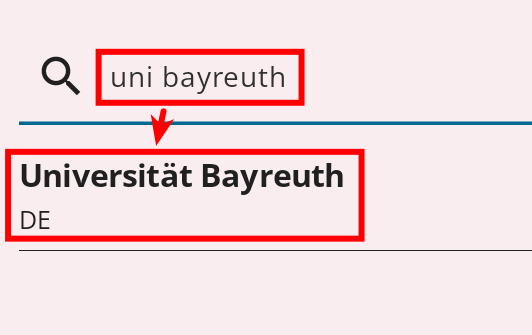
Öffnen Sie die eben installierte geteduroam App und geben Sie Uni Bayreuth oben in das Suchfeld ein ("Suchen Sie nach Ihrer Organisation").
Sobald unten Universität Bayreuth erscheint, tippen Sie darauf.
Sobald unten Universität Bayreuth erscheint, tippen Sie darauf.
4
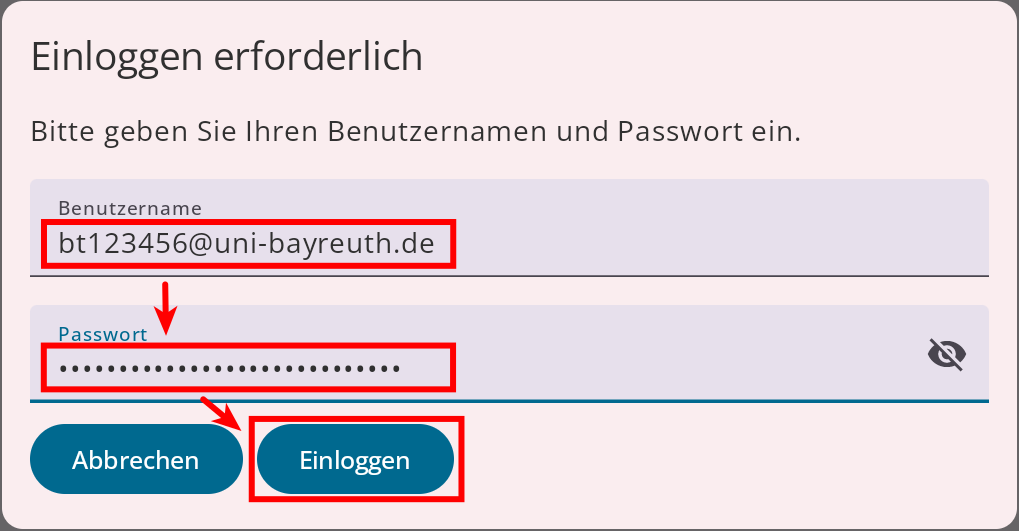
Warten Sie, bis das Login-Fenster erscheint und geben Sie bei Benutzername Ihre Uni-Benutzerkennung + @uni-bayreuth.de (z.B. bt123456@uni-bayreuth.de) sowie das dazugehörige Passwort ein.
Tippen Sie dann auf Einloggen.
Tippen Sie dann auf Einloggen.
5
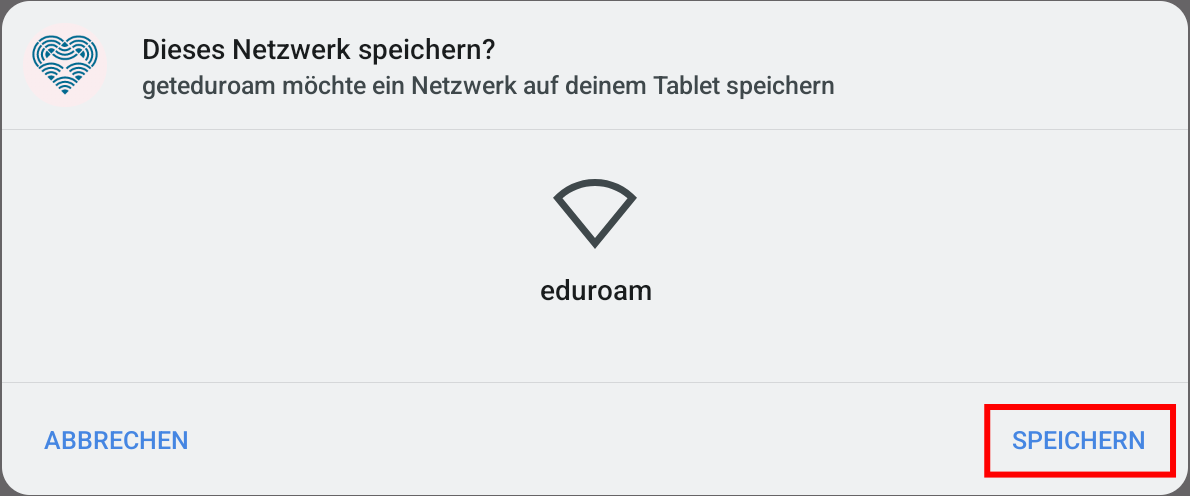
Die Verindung wird nun hergestellt. Wenn alles funktioniert hat, werden Sie gefragt, ob Sie das Netzwerk speichern möchten.
Tippen Sie auf Speichern.
Tippen Sie auf Speichern.
6
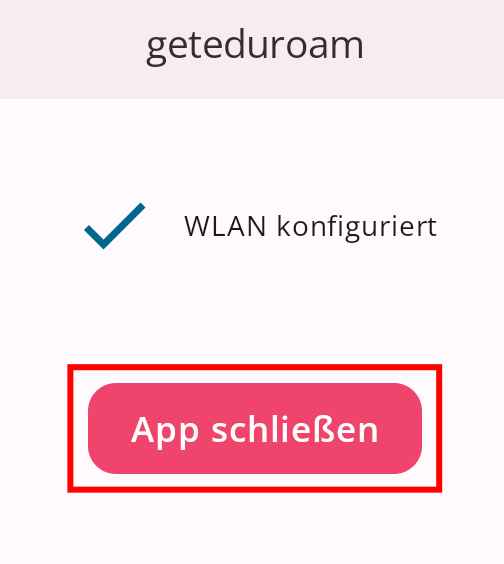
Schließen Sie nun die App indem Sie auf App schließen tippen.
7
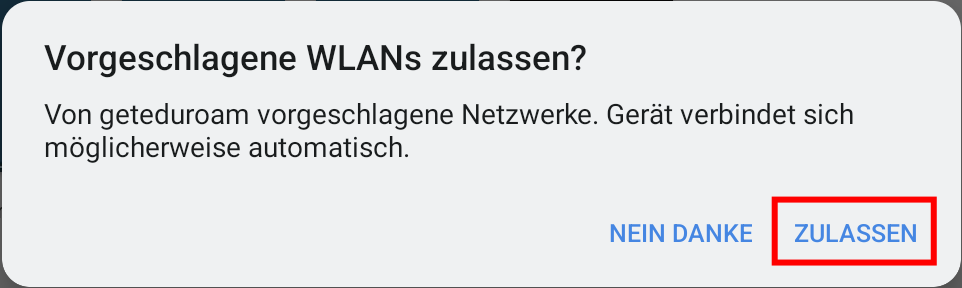
Nach dem Schließen der App werden Sie gefragt, ob Sie eduroam zulassen wollen. Tippen Sie auf Zulassen.
8
Fertig! Falls Sie @BayernWLAN verwendet haben, entfernen Sie es wieder aus Ihrer Netzwerkliste, damit sich Ihr Gerät nicht unbeabsichtigt damit verbindet.
Probleme bei dieser Anleitung? Schnelle und unkomplizierte Hilfe bekommen Sie über unser Kontaktformular!
Sagen Sie uns die Meinung - hat alles geklappt?
Laptopsprechstunde
IT-Servicezentrum Raum 3.2.U1.131 (Schalter im ITS Flur)
Öffnungszeiten: (ganzjährig, außer während der Weihnachtsschließung)
Mo-Fr 08:30 - 11:00 Uhr
Mo-Do 13:30 - 15:30 Uhr
Keine Terminvereinbarung erforderlich!
Mail: laps@uni-bayreuth.de